Work Board
See every inspection job as a card and move it as the shop status changes. Work Board is a Pro feature.
Before you start
Work Board is on the Pro plan. Creating an inspection report puts a card on the board. If you have no reports yet, start with New Report and Upload.
How to get there
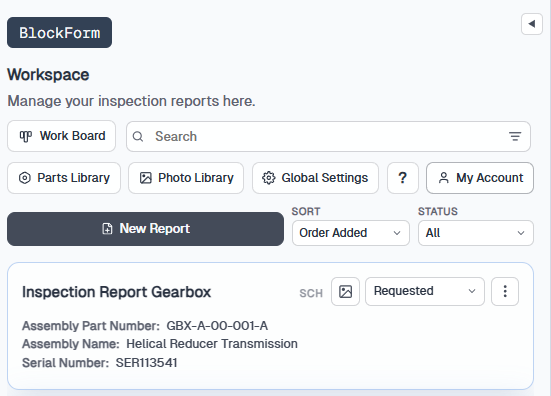
From the workspace, click Work Board in the toolbar to open the Work Board.
How to move the cards
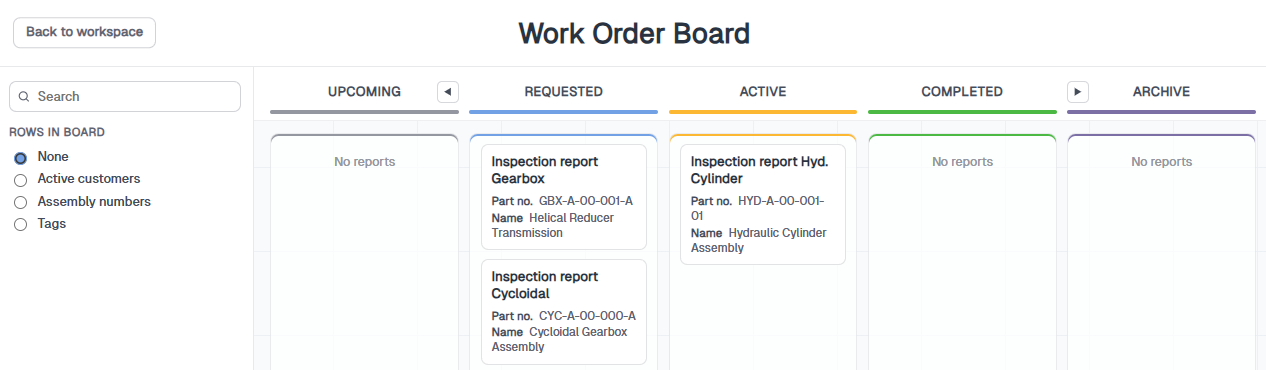
Each card is an inspection report. Drag a card from one column to another to update its workflow status. Columns are the stages of a job:
- UpcomingNot started / planned work
- RequestedReady to inspect
- ActiveIn progress
- CompletedPDF sent or job done
- ArchiveKeep the job but hide it from the main board
Expand or collapse Upcoming and Archive from the column edges when you need backlog or history. Use the sidebar search to find a report by title or part details.
Filtering the Board
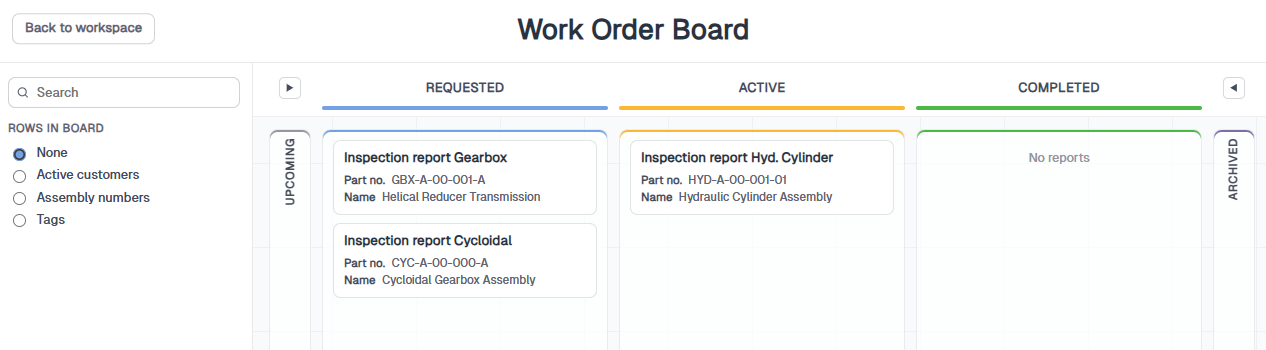
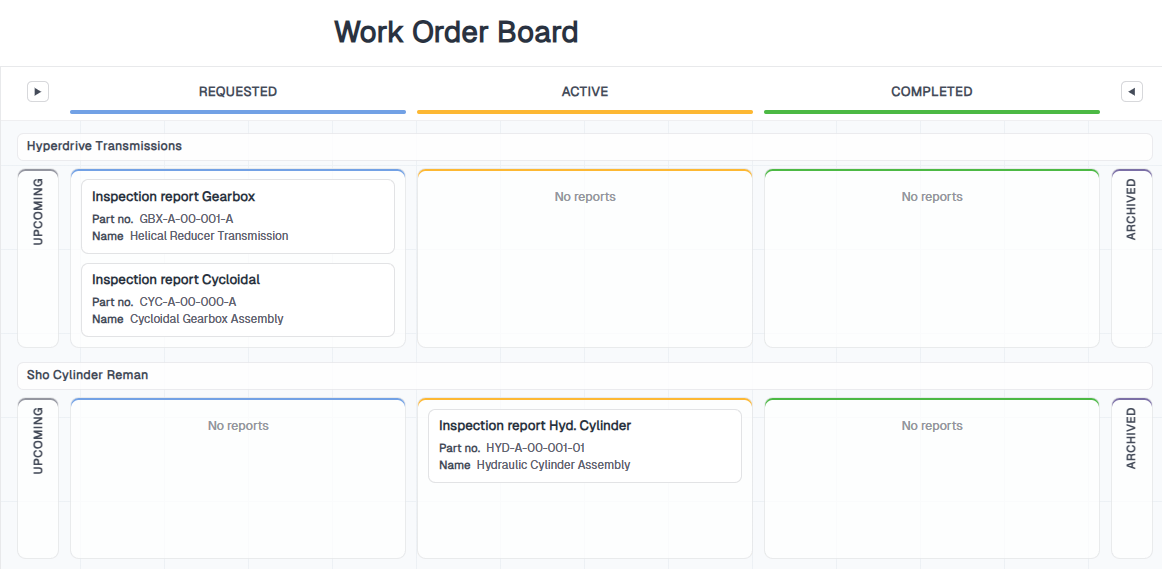
The Rows in board options in the left sidebar control how cards are grouped into horizontal swimlanes. Columns stay the same; only the row layout changes.
None (default)
All reports share one set of status columns with no extra row grouping. Use this when you want a simple pipeline view of every open job.
Active customers
Groups cards into rows by customer so you can see each customer's workload across Requested, Active, and Completed.
Assembly numbers
Groups cards by assembly part number. Useful when the same assembly type shows up across multiple reports and you want status by part identity.
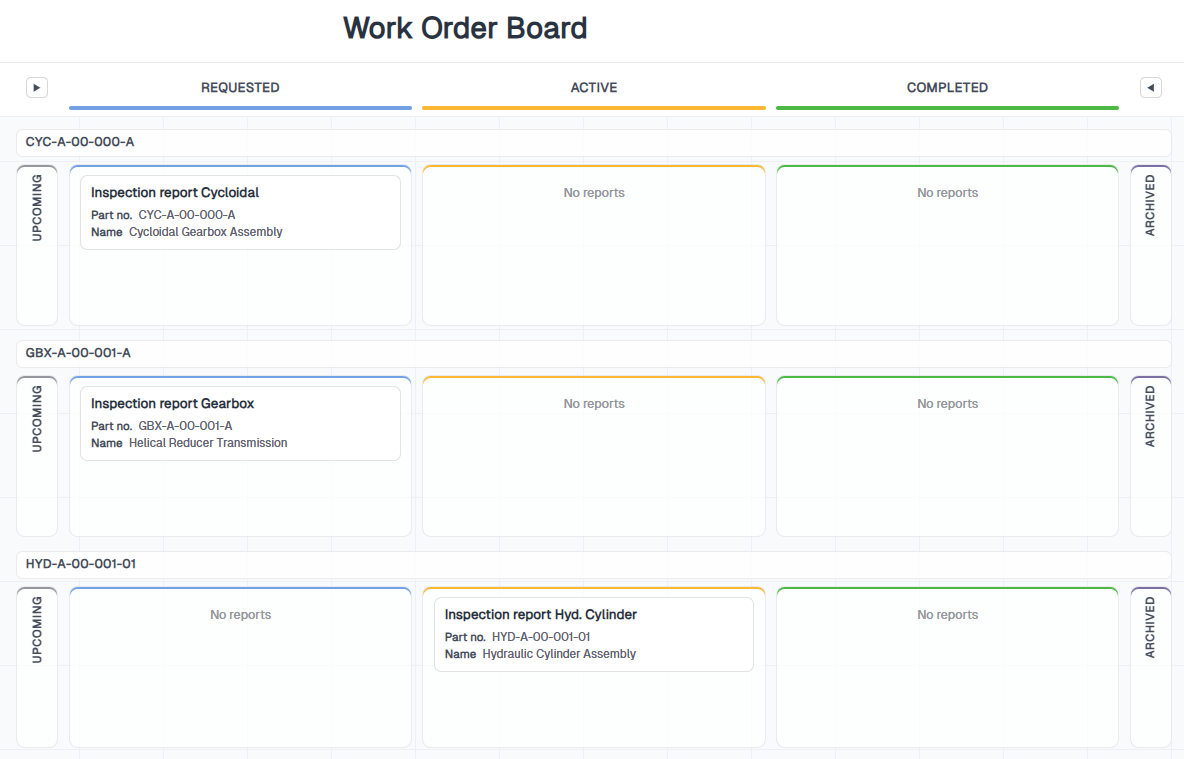
Tags
Groups cards by tag (for example Gearbox or Hydraulic Cylinder). Use tags when you want the board organized by job type or category instead of customer or assembly number. You can also filter the board to a single tag from the sidebar.
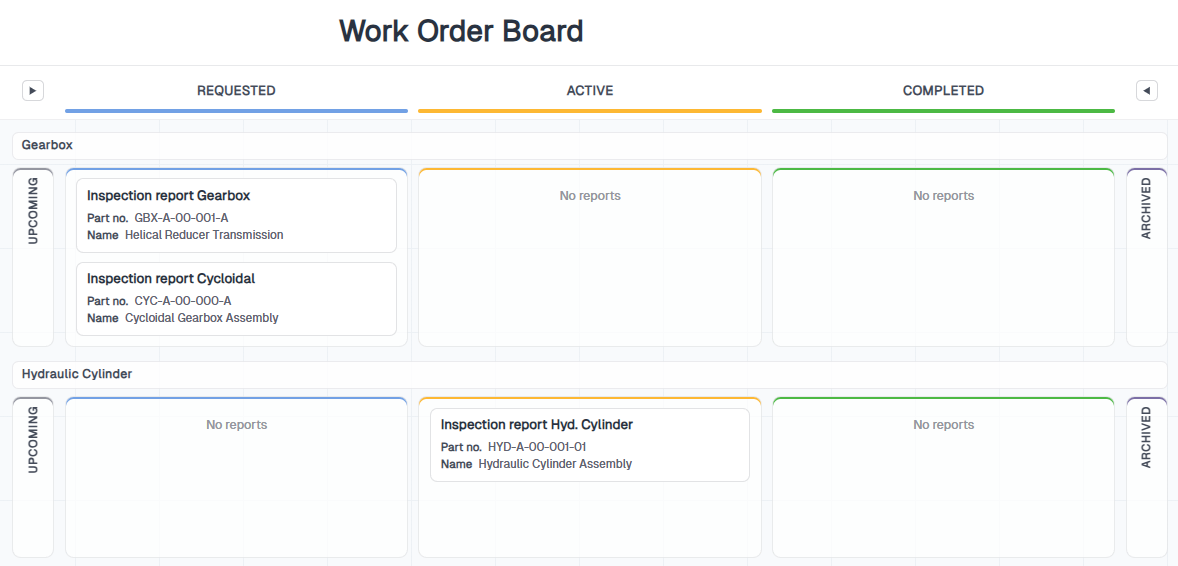
The Cards
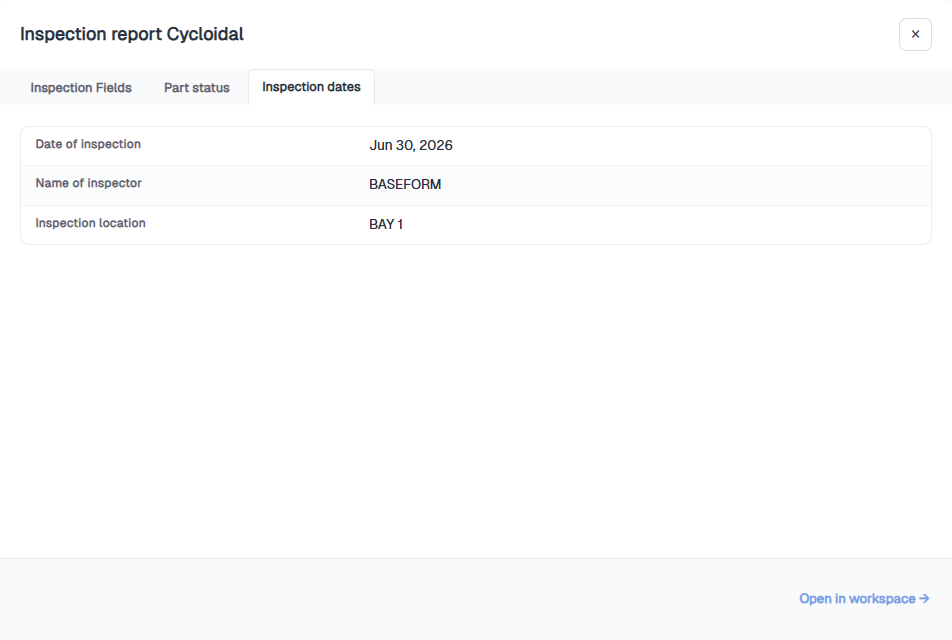
Cards on the board are clickable. Opening a card shows a summary of that inspection report without leaving the Work Board. Use Open in workspace when you need to continue the full report.
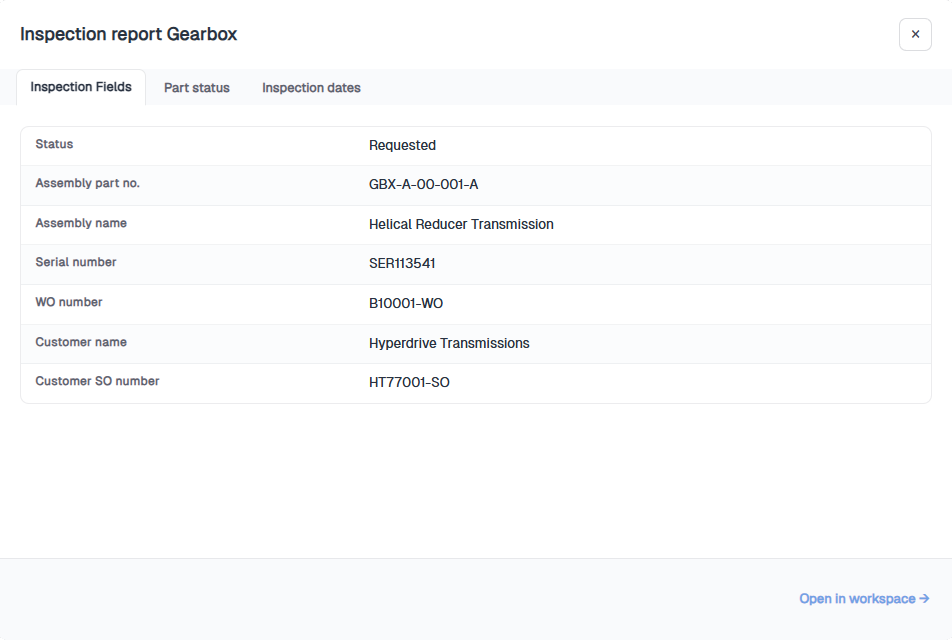
Inspection Fields
The first tab shows the inspection report header details — status, assembly part number and name, serial number, work order number, customer name, and customer SO number.
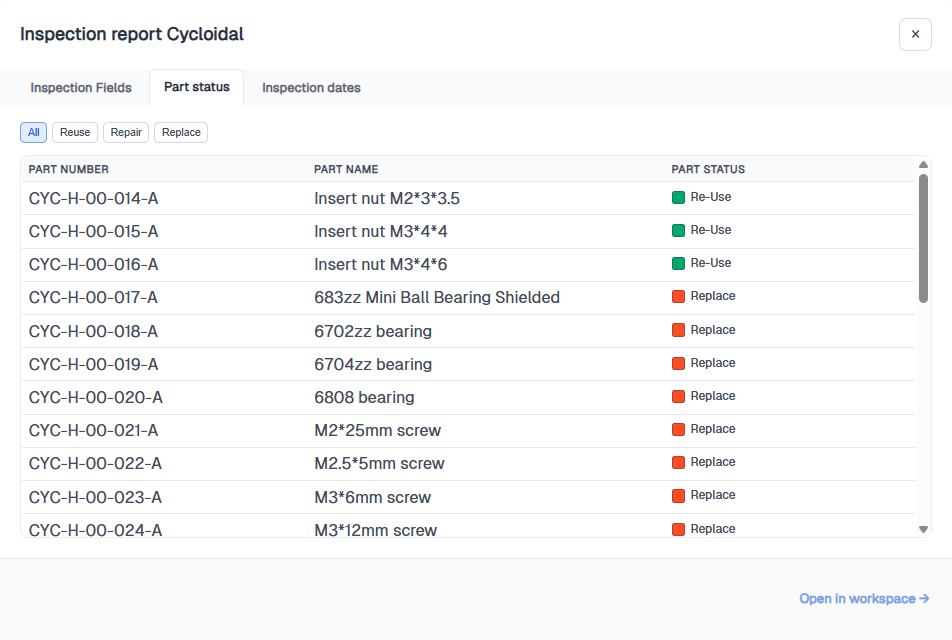
Part status
The second tab lists parts from the assembly with their current part status. Filter the list by All, Re-Use, Repair, or Replace to focus on the outcomes that matter.
Inspection dates
The third tab shows when the inspection happened, who inspected it, and where — date of inspection, inspector name, and inspection location.
If you get stuck
- The board is empty — create a report first. Cards appear when you save an inspection, not from this page.
- You cannot find Work Board in the toolbar — it is Pro. Free and Individual users will see an upgrade prompt instead of the board.
- Filters hide every card — set Rows in board back to None and clear the tag filter and sidebar search.